






[HOW TO FLASH] how to flash starsat lx
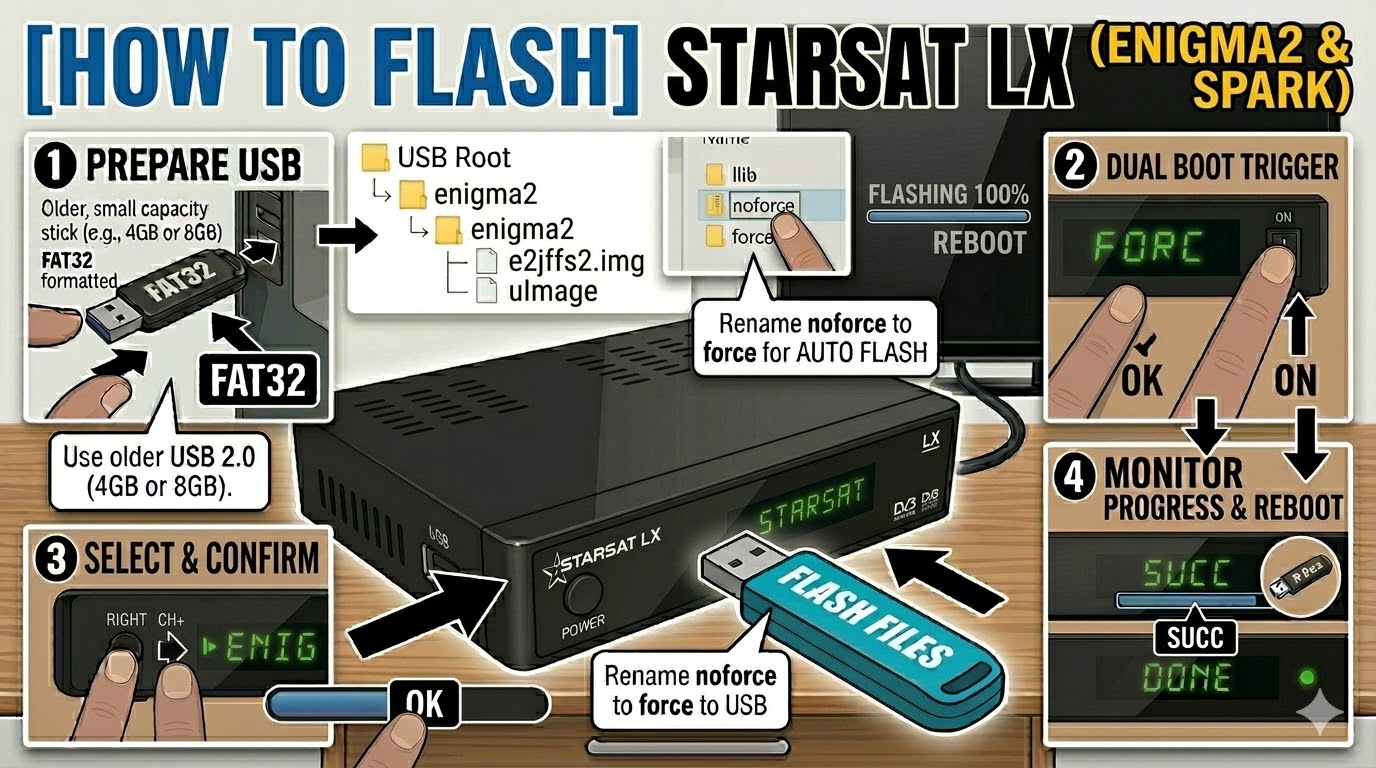
The StarSat LX is an Enigma2-based receiver that belongs to the “Spark” family of dual-boot devices. Flashing it requires a specific folder structure to trigger the bootloader during the startup sequence.
Preparation
- USB Drive: Use a FAT32 formatted USB stick. It is highly recommended to use an older USB 2.0 (8GB or less) drive. These receivers often fail to recognize larger or newer USB 3.0/3.1 sticks.
- The Files: Extract your chosen image (e.g., OpenATV). You must see a folder named enigma2.
- Root Path: Copy the enigma2 folder directly to the root of the USB drive.
- Structure: USB Root > enigma2 > (files: e2jffs2.img and uImage)
Flashing Steps
- Power Down: Turn off the receiver using the physical rocker switch at the back.
- Insert USB: Plug the USB stick into the rear USB port.
- The Trigger:
- Press and hold the OK button on the front panel of the receiver.
- While holding OK, flip the rear power switch to ON.
- Select Mode:
- Keep holding OK until the front panel display shows “FORC”.
- Release the OK button.
- Press the Right Arrow button (or CH+) on the front panel until the display shows “ENIG” (this selects the Enigma2 partition).
- Press OK to confirm.
- Flashing Process: The display will show “U LD” (Upload) or progress numbers. This typically takes 3 to 5 minutes. Do not turn off the power during this time.
- Completion: Once the process is finished, the display will show “SUCC” (Success), and the box will reboot automatically into your new image.
- Finalize: You can remove the USB stick once the boot logo appears on your TV.
Quick Troubleshooting
- Stuck on “TTO” or “NULL”: This usually means the USB drive is not compatible or the files are not in the correct folder. Try a different (older) USB stick and ensure the folder is named exactly enigma2.
- Dual Boot: If you want to boot back into the original Spark firmware, repeat the “Trigger” steps but select “SPAR” instead of “ENIG” when the display shows “FORC”.

 Reply With Quote