


[HOW TO FLASH] how to flash SPYCAT mini
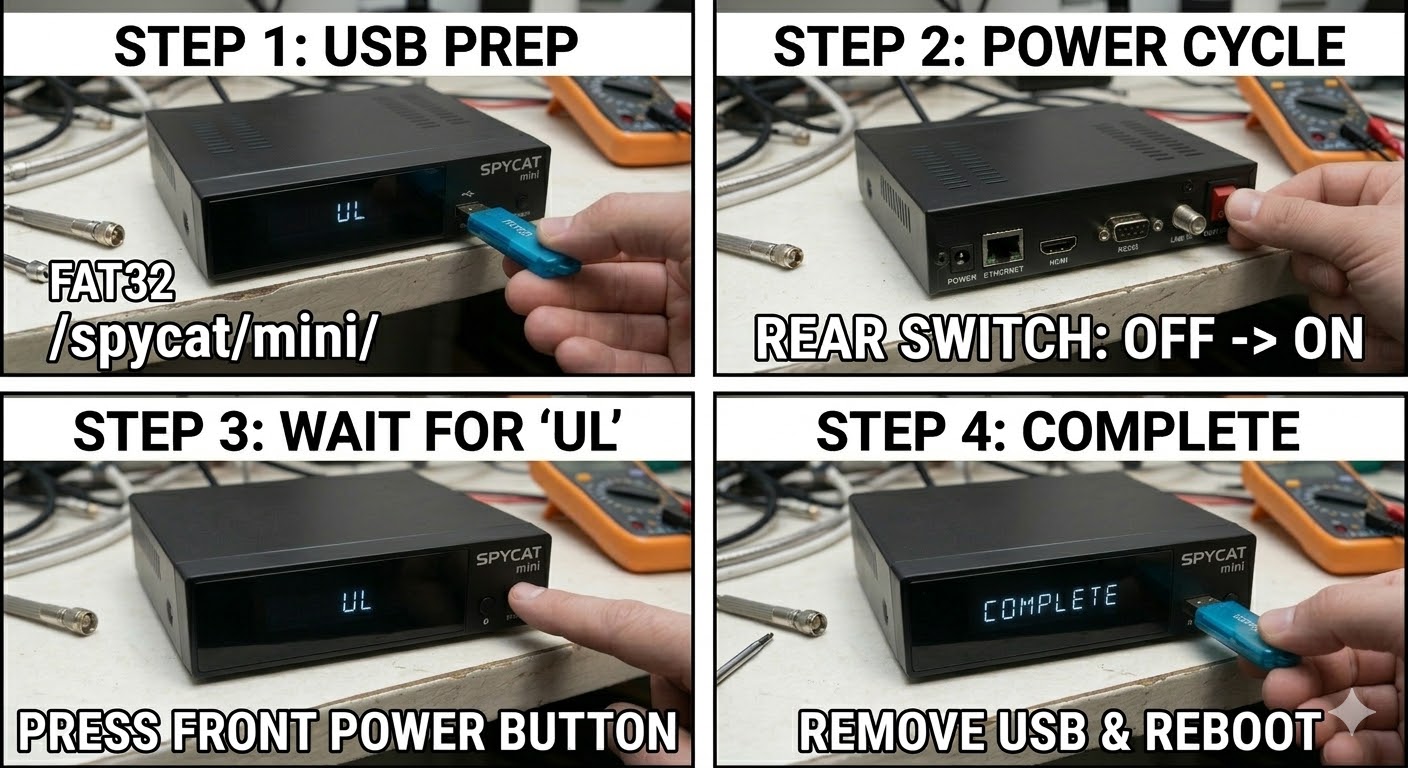
To flash the original SPYCAT Mini, you need to ensure the folder structure is precise, as this model looks for a specific subfolder to initiate the bootloader update.
Preparation
- USB Drive: Use a FAT32 formatted USB stick. This model is older and highly prefers USB 2.0 (8GB or less).
- The Files: Extract your image zip (e.g., OpenATV, OpenViX). You must see a folder named spycat.
- Root Path: Copy the spycat folder to the root of your USB drive.
- Structure: USB Root > spycat > mini > (files: kernel.bin, rootfs.bin, etc.)
- Note: Ensure the subfolder is named mini and not miniplus or miniv2.
Flashing Steps
- Power Down: Turn off the receiver using the physical rocker switch at the back.
- Insert USB: Plug the USB stick into the rear USB port.
- Power On: Flip the rear power switch to ON.
- The Trigger: * Watch your TV screen.
- When a prompt appears saying “Image upgrade found! Press OK to flash”, immediately press the OK Button on your Remote Control.
- Flashing Process: A progress bar will appear on the TV. This typically takes 3 to 5 minutes. Do not turn off the power during this process.
- Completion: The receiver will reboot automatically once the flash is finished.
- Finalize: Remove the USB stick as soon as the box starts to reboot to avoid the “Found Update” prompt appearing again.
Quick Troubleshooting
- Box ignores USB: If it boots to the old image, the USB drive is likely too modern or the folder structure is incorrect. Double-check that it is spycat/mini/.
- No TV Display: Ensure your TV is on the correct HDMI source before powering on the Spycat, as the “Press OK” window only lasts for a few seconds.

 Reply With Quote