


[HOW TO FLASH] how to flash Edision OS nino plus
Flashing the Edision OS nino plus (Step-by-Step)
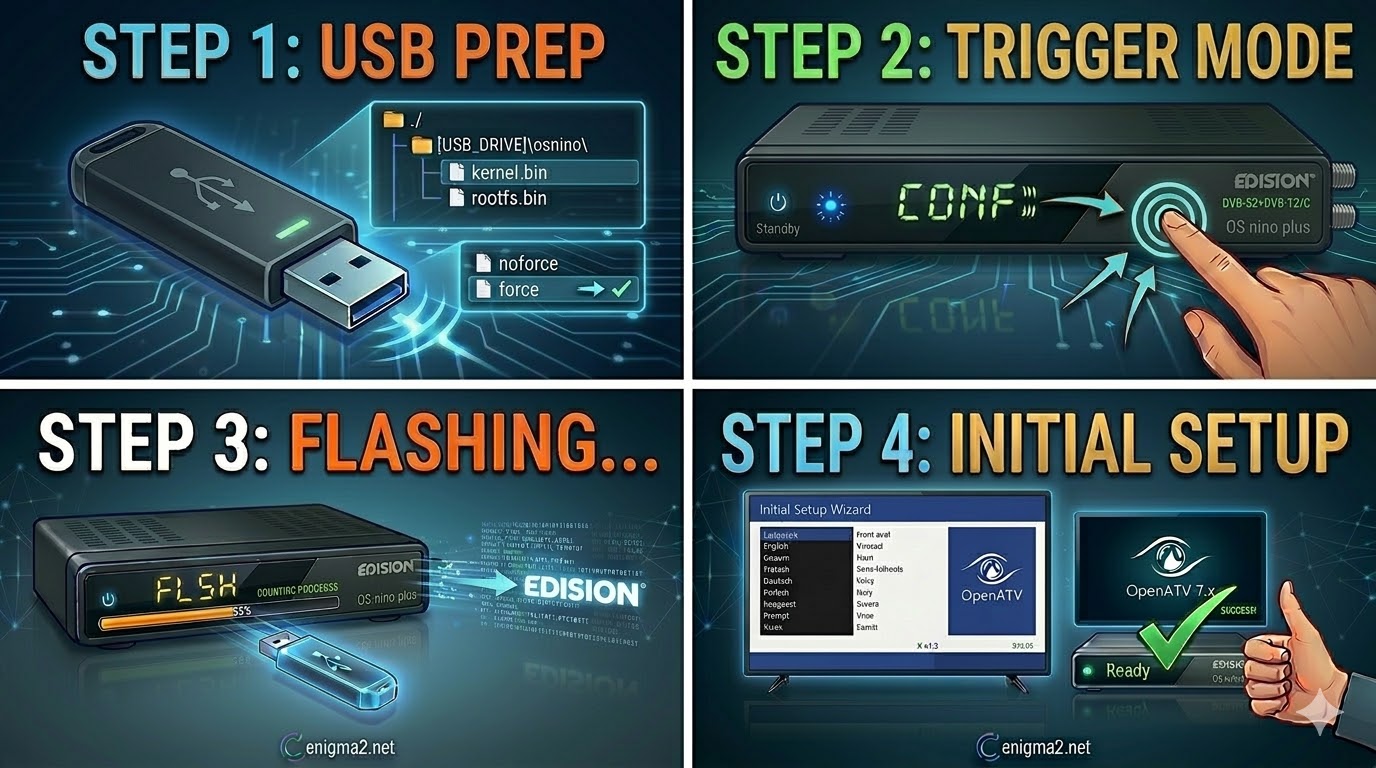
1. Prepare the USB Drive
- USB Selection: Use a high-quality USB 2.0 stick (FAT32 formatted). Sticks smaller than 8GB are highly recommended to avoid bootloader compatibility issues.
- The Folder Path: Extract the Enigma2 image ZIP (OpenATV, OpenViX, etc.). The root of your USB must contain a folder named osnino.
- Path: USB_ROOT/osnino/
- (Note: Even though it is the “plus” model, it typically uses the base osnino folder name for the flash files.)
- Verify Files: Ensure the osnino folder contains:
- kernel.bin
- rootfs.bin
- force (Rename the file from noforce to force if you want the flash to start automatically).
2. The Flashing Procedure
- Power Off: Turn off the receiver using the physical power switch at the back.
- Insert USB: Plug the prepared stick into the rear USB port.
- The Trigger:
- Turn the power switch to ON.
- If you used force: The front LED will change colors (blinking) immediately to indicate the flash has started.
- If you used noforce: Watch your TV screen. When prompted, press and hold the OK button on your Remote Control to confirm the flash.
- Wait: The process takes about 2–4 minutes. The LED will pulse during the write. Do not power off during this stage.
- Finish: The receiver will reboot automatically. You can remove the USB stick once the setup wizard appears on your TV.

 Reply With Quote