


[HOW TO FLASH] how to flash Edision Optimuss OS2
Flashing the Edision Optimuss OS2 (Step-by-Step)
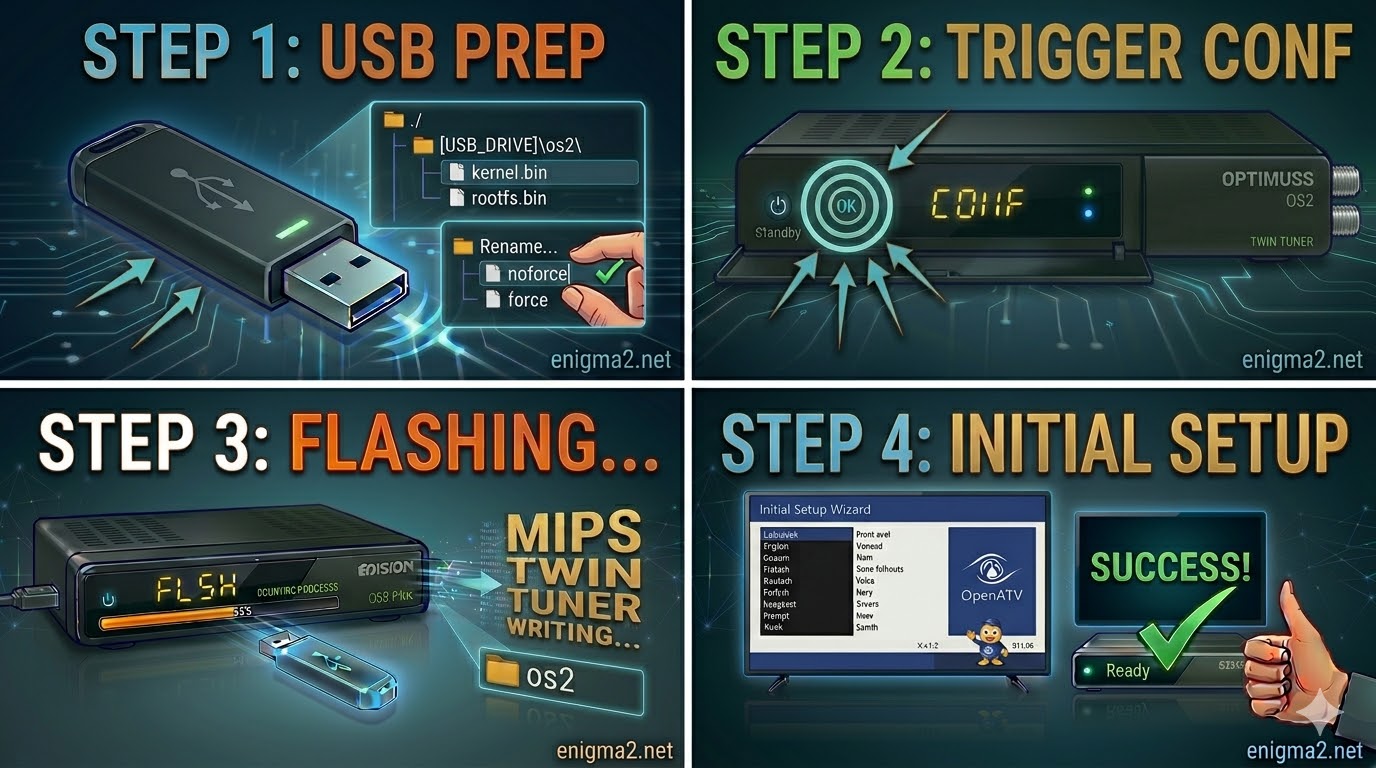
1. Prepare the USB Drive
- Format: Use a USB 2.0 stick (FAT32). This older MIPS bootloader can be quite picky; a 4GB or 8GB stick is highly recommended for the best chance of detection.
- The Folder Path: Extract your Enigma2 image (OpenATV, OpenPLi, etc.). The root of your USB drive must contain this exact folder:
- USB_ROOT/os2/
- Verify Files: Inside the os2 folder, you should find:
- kernel.bin
- rootfs.bin
- imageversion
- Auto-Flash Tip: If your download includes a noforce file, rename it to force to skip the manual trigger step.
2. The Flashing Procedure
- Power Off: Turn off the receiver using the physical power switch at the back.
- Clear the Deck: Ensure no other USB devices are connected. Plug your stick into the front USB port (behind the drop-down flap).
- The Trigger:
- Turn the power switch back to ON.
- If using force: The front VFD display will immediately show “FLSH” or “Flashing”.
- If using noforce: Watch the front VFD display. When it shows “CONF” or “USB”, press the OK button on the front panel (behind the flap) or on your Remote Control.
- Wait: The process typically takes 3–5 minutes. Do not power off or remove the USB while the VFD shows progress.
- Finish: The receiver will reboot automatically. Once the setup wizard appears, you can safely remove the USB stick.

 Reply With Quote