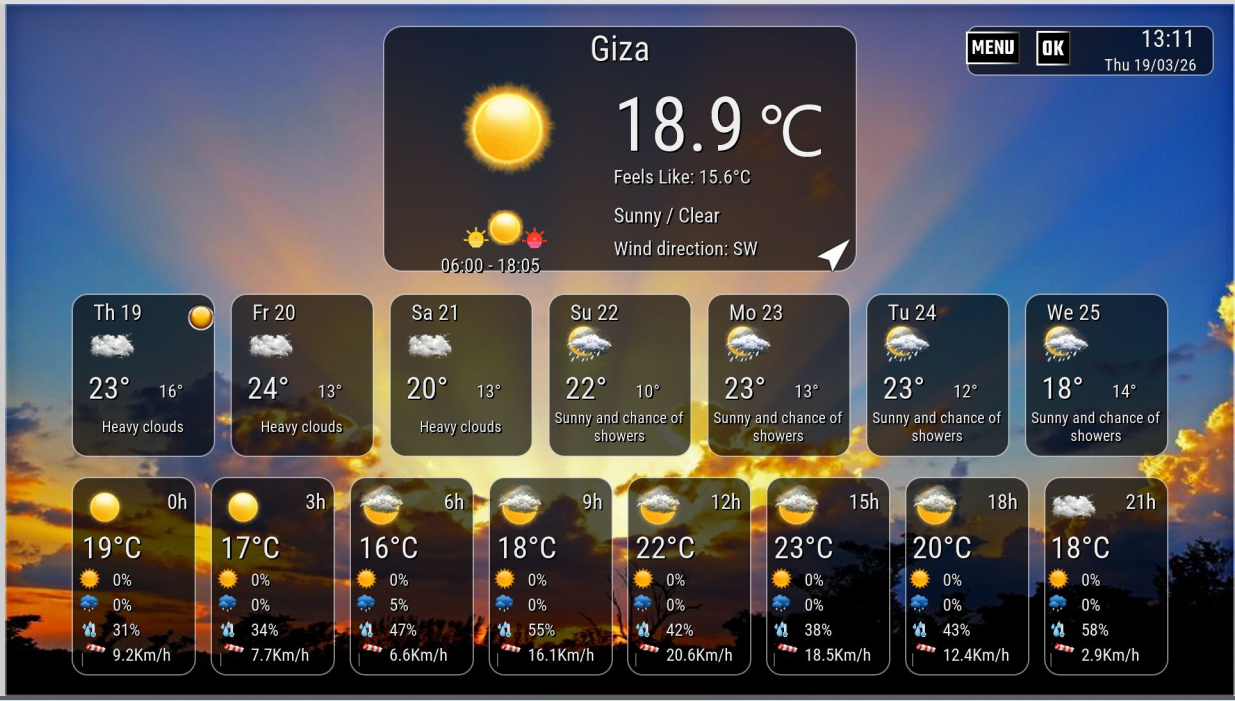
Update version 5.0
Hi,
Now moving to Version 5.0 - download from first post
We are now moving to version 5.0, which represents a major step forward for this plugin in terms of development and improvement. This release includes a large number of important changes at the interface, code, and usability levels.
Tested on Marlin image - Gemini - Openatv 7.60 - 8.0 - VTI image
Main Changes in This Release
Major improvements have been made to the plugin’s internal code.
The Settings screen has been redesigned to be cleaner and better organized.
The Add City screen interface has been changed to make it clearer and easier to use.
The function of the icon selection button has been modified. It is now used to switch between screen backgrounds instead of its previous function.
It is now possible to choose easily between the available backgrounds.
The plugin interface for the 7-day screen has been improved and now supports 16 different backgrounds, which can be switched between easily.
The date and time of the last update have been added.
It is now possible to choose how updates are performed, either at startup or automatically at a selected interval.
A temperature unit option has been added, allowing you to choose between Celsius and Fahrenheit.
A wind speed unit option has been added, allowing you to choose between kilometers and miles.
Explanation of the Settings Screen Options
The Settings screen contains a number of options, and the function of each one is as follows:
Weather service
Specifies the weather data provider used by the plugin to fetch information.
Weather city name
Specifies the current city whose weather information will be displayed.
Temperature unit
Changes the temperature unit between Celsius and Fahrenheit.
Metric unit for wind speed
Specifies the wind speed display unit, such as km/h or m/s.
Weather icon set
Changes the set of weather icons used in the plugin interface.
Show trend arrows for moon data
Enables or disables the display of trend arrows for moon data.
Auto Update
Specifies whether weather data is updated automatically or manually.
Cache data
Specifies how long weather data is kept in cache before a new update is requested.
Enable Debug
Enables or disables diagnostic and error logging to help with troubleshooting and review.
Buttons at the Bottom of the Screen
Select location
Used to choose a new city for weather display.
Save
Saves all changes that have been made.
Add City
Adds a new city to the favorites list.
Manage Favorites
Opens the favorites management screen.
Explanation of the Manage Favorites Screen
The Manage Favorites screen is used to manage the cities saved in the favorites list. Its functions are as follows:
List of saved cities
Displays all cities saved in the favorites list.
Select city
Allows you to choose a city from the list to make it the active city or display its weather.
Delete
Deletes the selected city from the favorites list.
Save
Saves the selected city and sets it as the current city.
Edit
Allows you to modify the selected city name or data by searching for it again.
Add City
Adds a new city to the favorites list.
Search / Keyboard
Opens the search screen or keyboard to type and search for a city name.
Return with selected city
When this screen is opened from Settings or from the city selection screen, the selected city is returned to the previous screen.
Sync active city
Ensures that the selected city is synchronized with the main screen and settings.
Restore default city
If the list becomes empty, the default city can be restored so the plugin does not remain without a selected city.
Explanation of the Choose City Screen
The Choose City screen is used to select the correct city after searching. Its functions are as follows:
Search result list
Displays a list of cities matching the name entered in the search.
Select city
Allows you to choose the correct city from the search results.
Confirm selection
Confirms the selected city and returns it to the previous screen.
Cancel
Cancels the process and returns without saving any changes.
Location matching
Helps distinguish between cities with similar names and choose the correct one.
Send selected city back
Sends the selected city back to the Settings or Favorites screen so it can be saved and used.
Sync with plugin
After selection, the city is linked with the settings, favorites list, and the plugin’s main interface.
Important Note
It is recommended to remove any previous version of the plugin before installing this release, in order to avoid any conflicts or leftover files that may affect the performance of the new version.
# DreamOS / dpkg
dpkg -P enigma2-plugin-extensions-theweatheriet5
or
rm -rf /usr/lib/enigma2/python/Plugins/Extensions/TheWeatherIet5
# Open Source / opkg
opkg remove enigma2-plugin-extensions-theweatheriet5
or
rm -rf /usr/lib/enigma2/python/Plugins/Extensions/TheWeatherIet5
dep
DOWNLOAD
ipk
DOWNLOAD


 Reply With Quote